

Logo and icon paths
You can try an SVG with editable logo or icon paths rather than an embedded bitmap.
This SVG-to-DXF converter is for SVG files with editable paths, shapes, and curves. Convert text to outlines first; after conversion, verify supported geometry, units, layers, curves, and closed paths in your target CAD workflow.

A visual explanation of prepared paths, curves, and nodes becoming geometry you can review in CAD.
Format examples
This SVG self-test starts with editable paths and shows the DXF result as CAD-style linework on a dark grid, making the geometry handoff visible. Text, effects, units, and closed paths still need review in the target software.
COMMON USES
These are common uses, not an exhaustive list. If the target outline is clear, upload it first to inspect a real preview.
The cards show input ideas, not guaranteed results. Upload your own file to inspect the real preview.
You can try an SVG with editable logo or icon paths rather than an embedded bitmap.
You can try a clean closed outline intended for laser cutting or engraving, then check units and curves.

You can try a simple illustration or sticker contour with outlined text and limited interior shapes.
SVG-to-DXF use cases
SVG to DXF is designed for prepared paths, shapes, and curves; live text, embedded bitmaps, and visual effects are not automatically editable geometry.
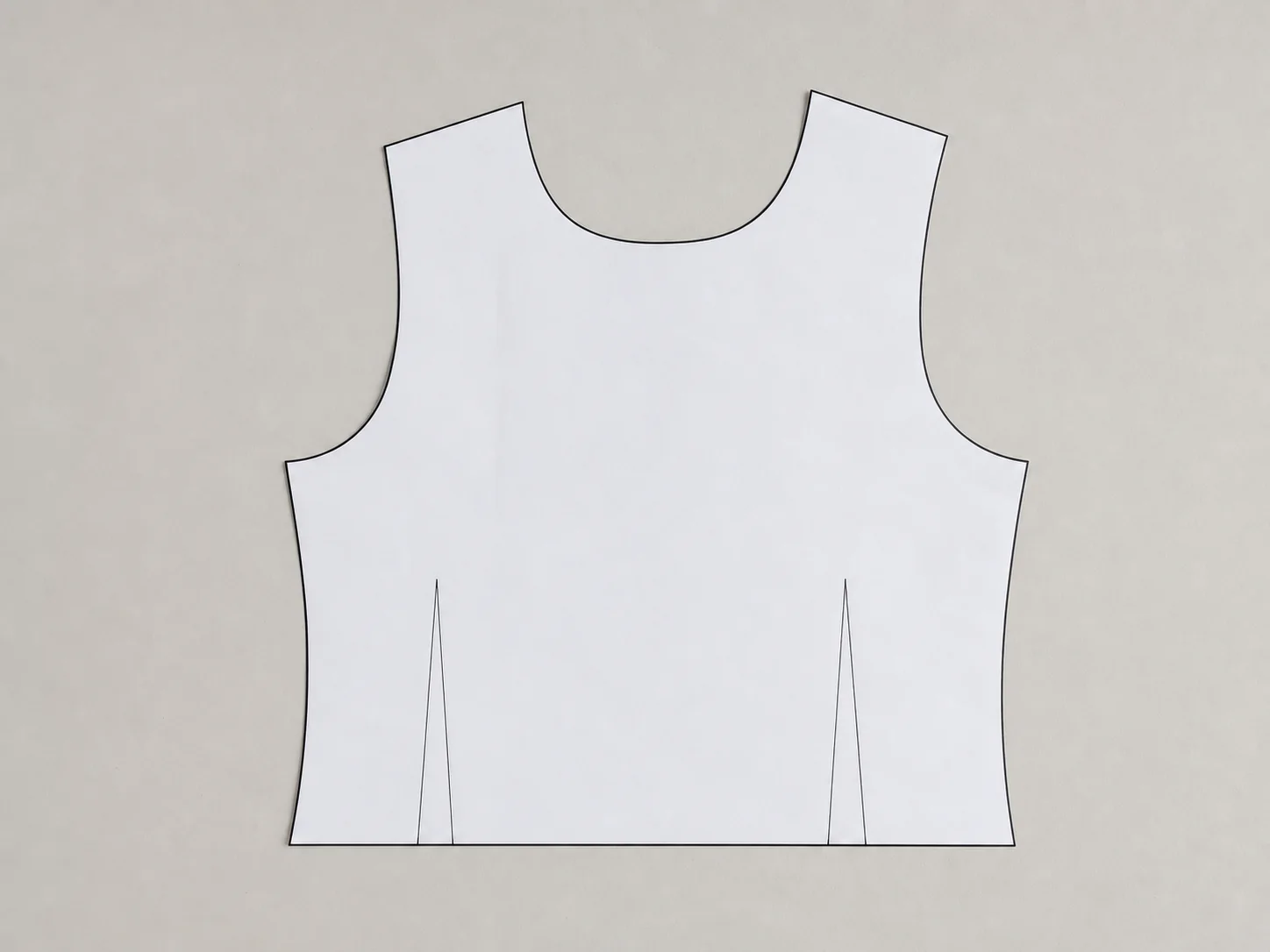
Explicitly closed paths are easier to bring into CAD than visual effects that depend on fills, shadows, or filters.
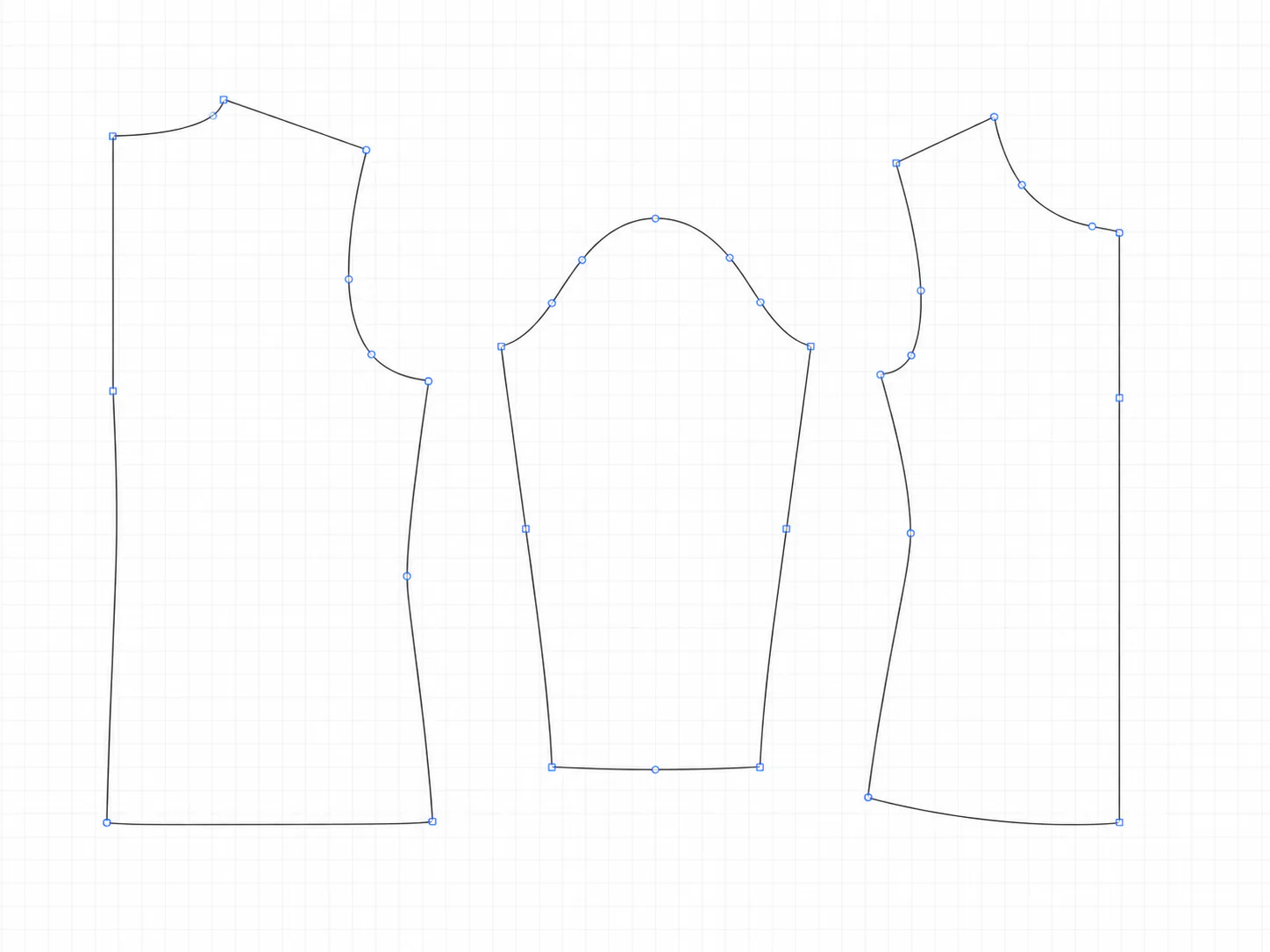
Convert live text and necessary strokes to paths, then check curves and closure after export.
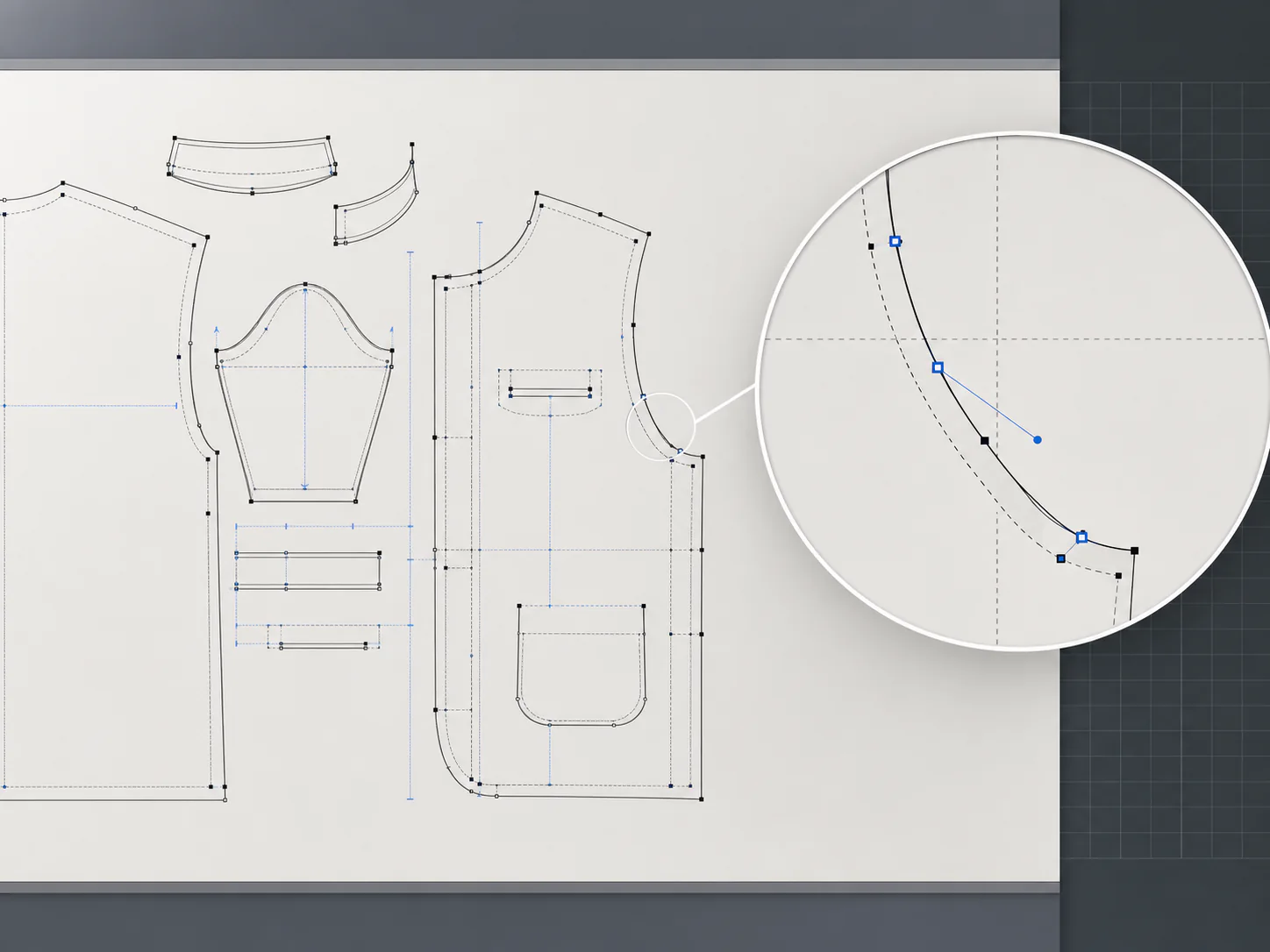
Review units, scale, path direction, curves, and how the target software handles layers and effects.
SVG-to-DXF workflow
Prepare SVG paths, export a DXF draft, and confirm the geometry in the target CAD software.
Outline text, expand strokes when needed, and remove unnecessary embedded bitmaps and effects.
The service converts supported paths, shapes, and curves into a downloadable DXF draft.
Verify units, scale, closed paths, curves, layers, and unsupported SVG features.
SVG to DXF depends on recognizable path geometry; it does not reliably turn visual effects, live text, or embedded bitmaps into CAD entities.
Engine version
ETCAD profile v4_16_arc_bulge_precision
Conversion pipeline
User-supplied sticker bitmap → project vectorization → SVG paths → ETCAD DXF
Recorded files
CAD review status
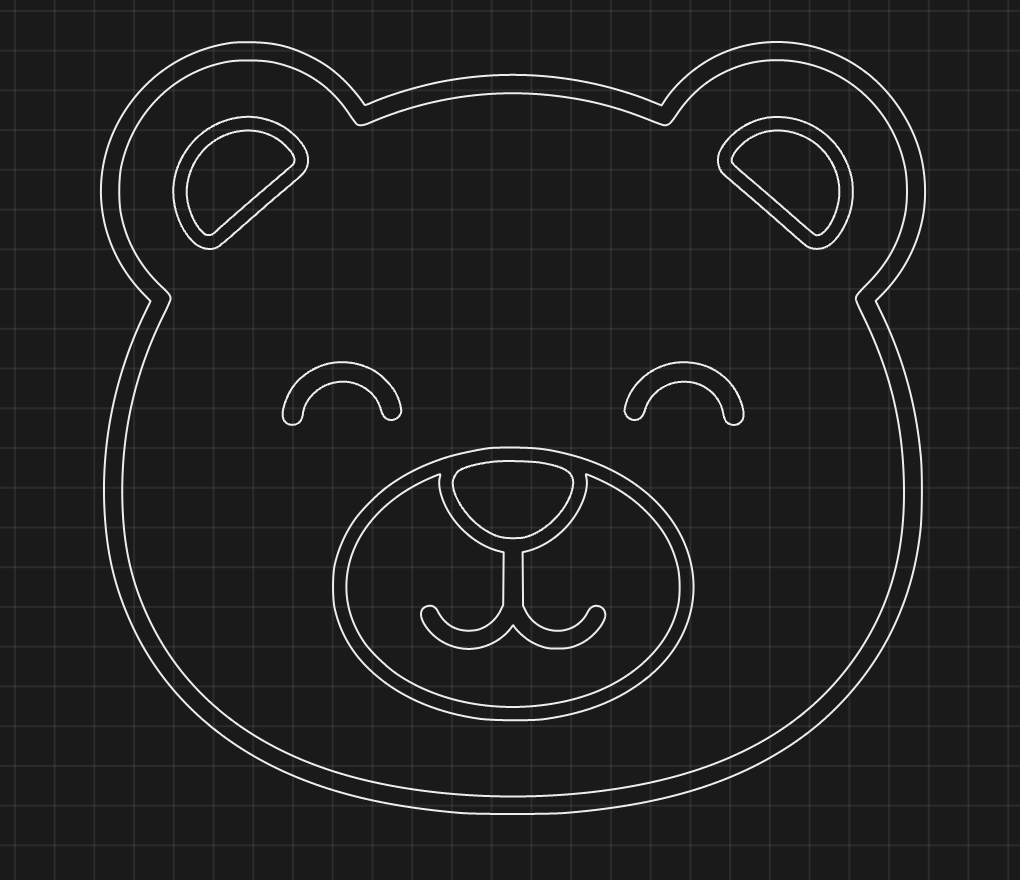
CAD review metadata pending
The CAD software, version, import options, and review conclusion still need to be recorded.
Source explanation
Technical details keep the source conditions and conversion path available for deeper review.
SVG-to-DXF FAQ